
One photo, one verdict, find it again.
ritrovo needs no account. On first launch, two sheets explain what it is about and ask for the camera. The second sheet also has three switches (place, second copy, photo library). You can change all of them later.After the camera, Let's go takes you in. Android asks for your location the first time you open the viewfinder.
Take a photo
Tap the camera circle at the bottom right, press the shutter, tap Done. The entry is there.
Details →Give a verdict
Open the entry and tap the medal chip: once for gold, again for silver, bronze, dud.
Details →Find it again
Map, list or gallery at the top right, plus the search field at the bottom. After a new shot, ritrovo speaks up when it recognises something.
Details →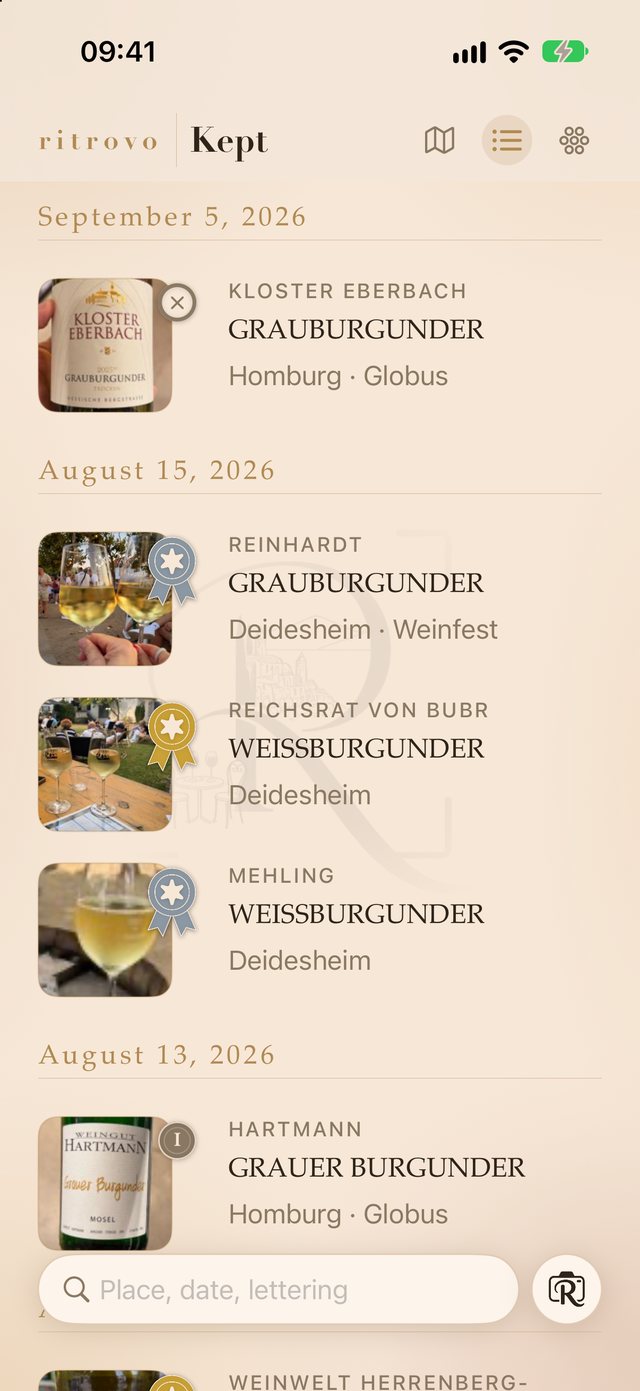
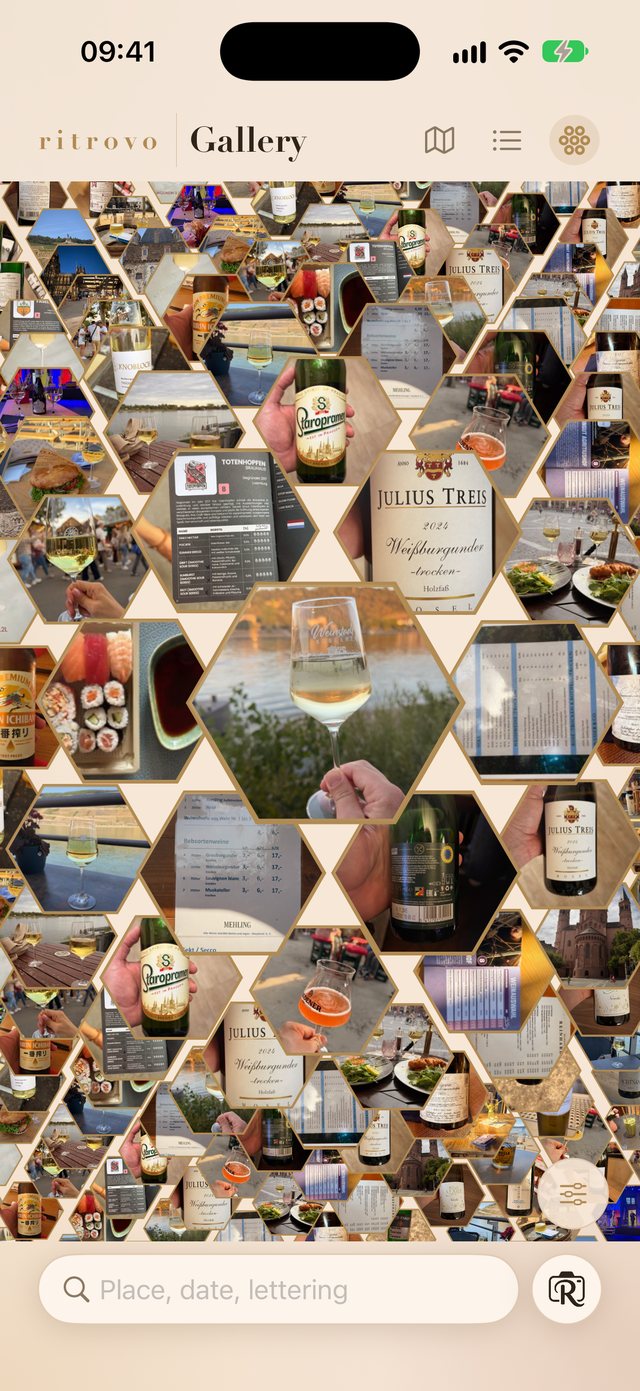
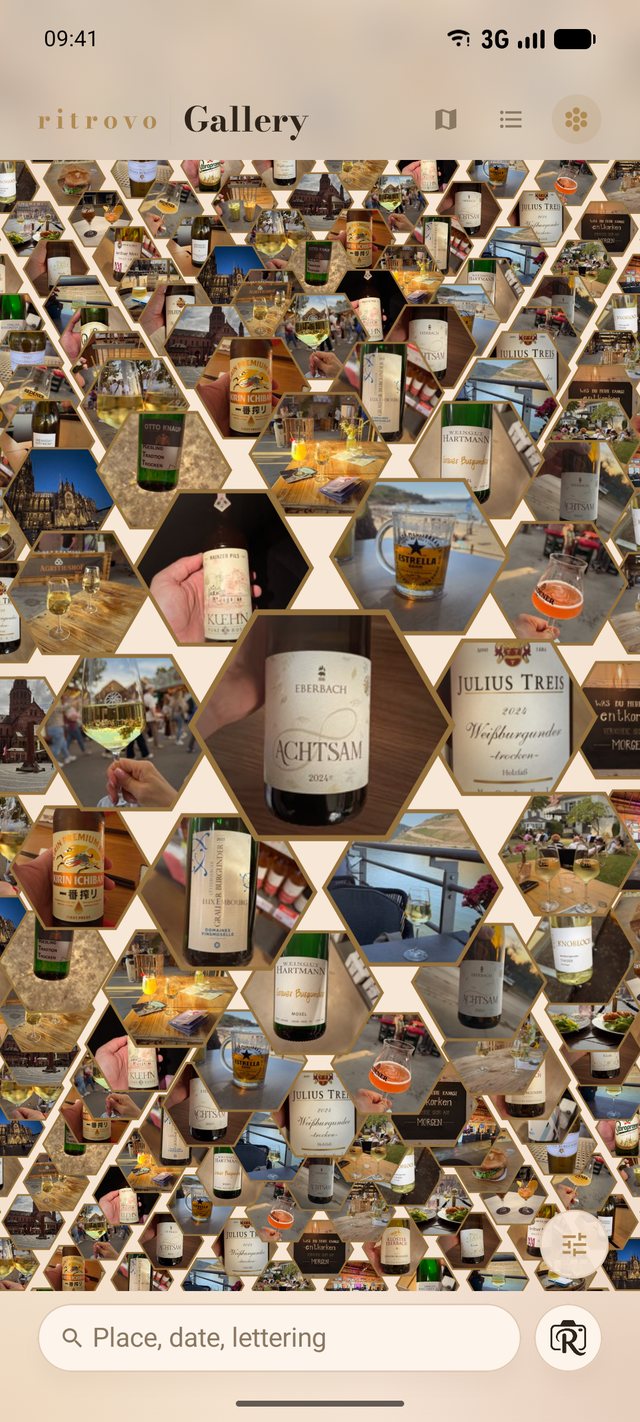
How the app is laid out
- The “ritrovo” wordmark
- At the top left. Opens About ritrovo with all settings and the backup.
- Three icons at the top right
- On the map, As a list, To the gallery. They switch the view. The one you chose last stays the next time you open the app.
- Search field at the bottom
- Place, date, lettering. Search applies to the map, the list and the gallery.
- Camera circle at the bottom right
- Capture opens the viewfinder.
- An entry
- Tap to open it: date, place, photo with picture strip, name, medal, note, who was there.
The very first time, ritrovo opens on the mapthe list. There is no tab bar. ritrovo runs on iPhone in portrait.
How do I do things?
Capture
Capture something
- Tap the camera circle Capture at the bottom right.
- At the top of the viewfinder there are three targets: New entry starts an entry, Last adds the photo to the most recent entry, Gallery only just saves it to your photo library.
- After the first photo, New entry appears at the top of the viewfinder, and below it one dot per entry with the number of its photos.
- Press the shutter. Several shots in a row (bottle, back label, glass) become one entry.
- Tap Done.
ritrovo asks nothing when you press the shutter. If the label has clear lettering, ritrovo sets it as the name itself.
In the viewfinder, a tap focuses, two fingers zoom, and the flash fires by itself. When it spots a barcode, it says Barcode detected. The Live Photo switch takes a Live Photo.
When the viewfinder spots a barcode, it says Barcode detected.
The barcode only helps you find things in your own collection. Nothing is looked up.
Several entries in one go
Everything you shoot in a row belongs to one entry, even with pauses in between. For the next wine, tap New entry at the top again: the next shot starts a new entry. Each entry gets its own dot with the number of its photos.
Use photos you already have
- Open the viewfinder and tap the gallery button on the left.
- The note The photos of one wine explains it briefly. Tap Pick photos.
- Choose up to ten photos. Together they become one entry.
- Open the viewfinder and tap the gallery circle (Pick from the photo library).
- Choose one photo in Android’s photo picker. It becomes an entry.
On Android, ritrovo takes one picture at a time. You add more pictures in the entry with the + in the picture strip.
If Take the date and place from the library is on, ritrovo takes over the photo’s date and place.
Capture from the Lock Screen
Add the Capture widget to the Lock Screen (round or wide; there is also Capture · plain). From iOS 18 there is also a control for Control Center and the Lock Screen buttons. All of them open the viewfinder directly. There is no Home Screen widget.
The camera is not allowed
The viewfinder then tells you that ritrovo isn’t allowed to use the camera. Tap Allow it in Settings and switch the camera on for ritrovo. Until then, Pick from the photo library works.
If another permission is missing (location, photos), ritrovo switches the matching switch off again itself and says why.
The entry
Give a medal
- Open the entry. The medal chip sits below the name (Rate it as long as there is no medal).
- One tap gives gold. Each further tap moves one step on: silver, bronze, dud, then unrated again.
- Touch and hold to open the choice: gold, silver, bronze, dud or unrated.
Next to it are Acquired and Interesting. You can pick one of them; a second tap takes it back. In the list, the cover photo carries the medal as a seal.
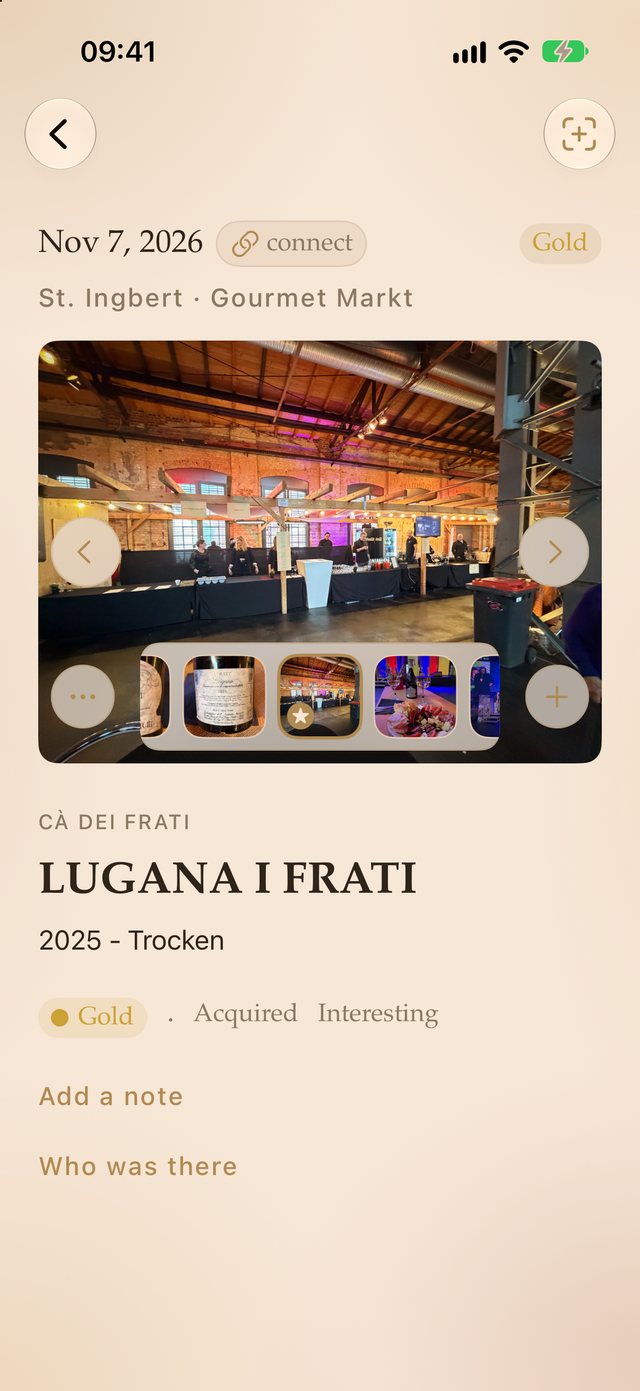
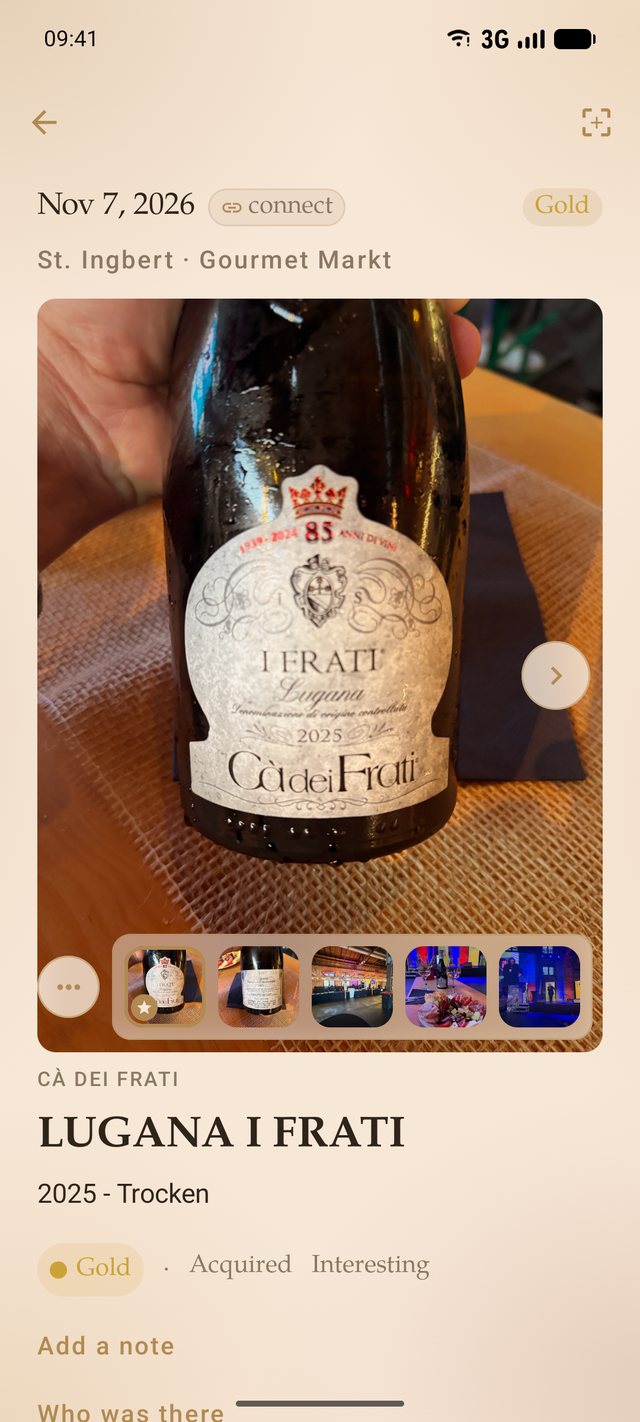
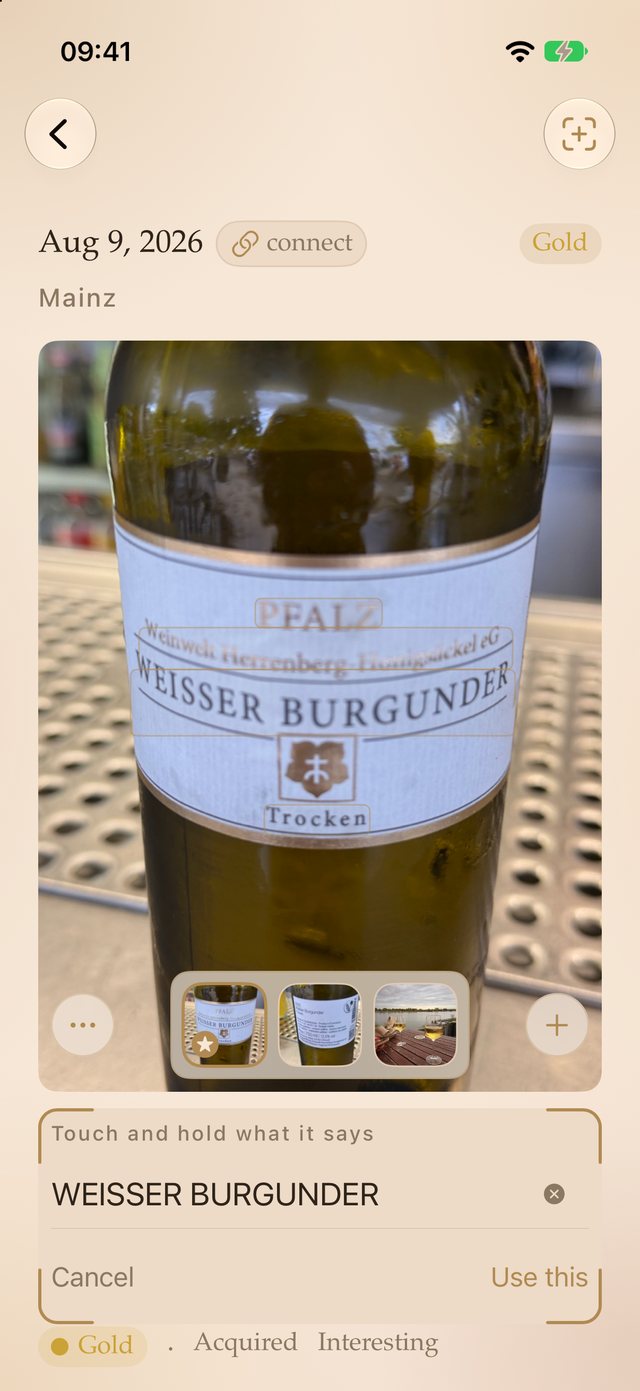
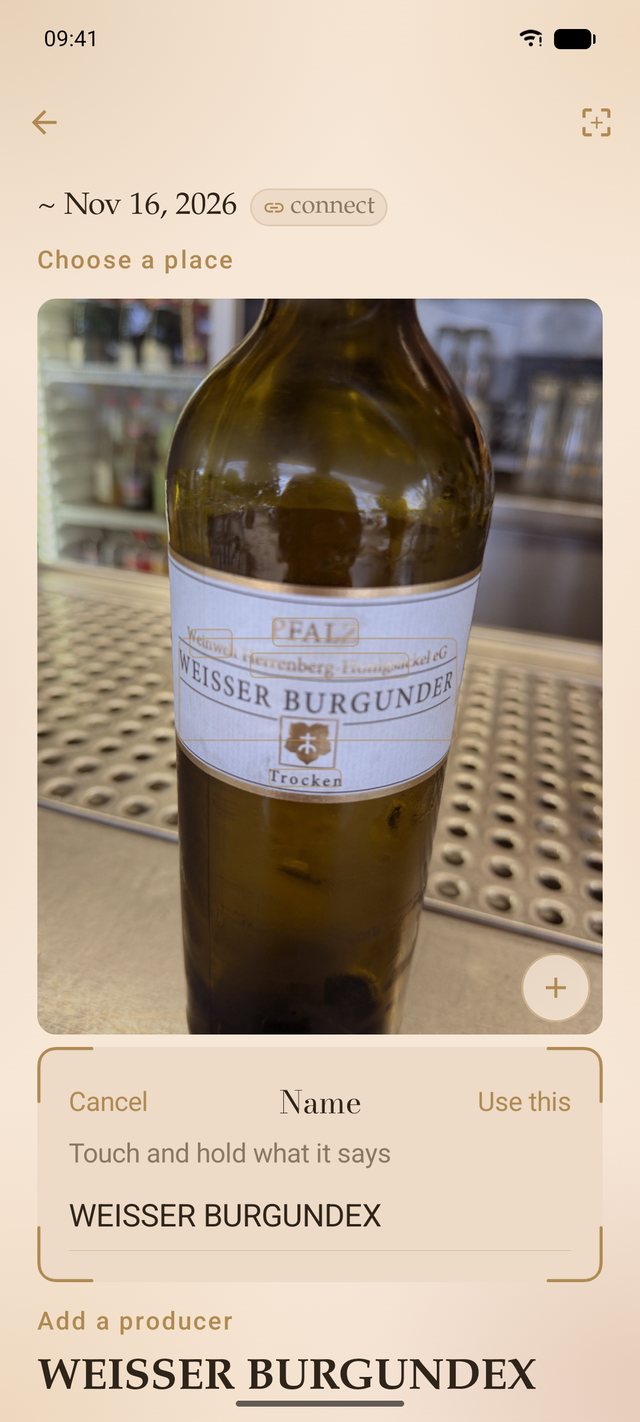
Take the name from the picture
- In the entry, tap Tap to name it (or the existing name).
- Above the picture it says Touch and hold what it says. ritrovo frames the lines it has read.
- Touch and hold a line. Deselect or select single words.
- Tap Use this.
It works the same way for Add a producer and Add a caption. Typing on the keyboard always works.
Tick lines on a wine list
Take a photo of the list. In the entry, tap Tap to tick and touch and hold the lines you tried. Search finds what you tick.On Android, search does not find what you tick yet.
Keep and name the place
The Keep the place with the entry switch in About ritrovo is off at first. Switched on, ritrovo notes where you are when you take the picture and looks up the town once per place.
The Keep the place with the entry switch in About ritrovo is on at first. Android asks for your location the first time you open the viewfinder. ritrovo looks up the town once per place, through your device’s location service.
- In the entry, tap Name this place and give it your name, such as “At Anke and Jörg’s”.
- The name applies to every shot within about 80 metres. Below, ritrovo suggests places Nearby and Your places; the “Town or city” field searches for a town.
- The name belongs to the place and then stands on every entry from there.
- If only this entry belongs elsewhere: File this entry somewhere else → Choose a place, or New place.
- If the entry belongs to another of your places: Choose a place.
Date, producer, caption, note
- Date: tap it, then pick the day in When was thisin the calendar.
- Producer appears small above the name, the winery for instance. Caption appears small below it, the grape for instance.
- Note: Add a note. Leaving it blank removes it again.
None of it is required.
Who was there
Tap Who was there, type a name and tap Add. Once added, the person is there to pick next time. Done closes the sheet. Touch and hold a person to give them a photo (Choose photo) or rename them.
ritrovo does not access your contacts. The names are not part of any backup, see FAQ.
Add pictures, choose the cover, delete pictures
- Add: tap + in the picture strip. The viewfinder opens.
- Cover photo: touch and hold a thumbnail → Set as cover photo.
- Delete: Select, tap thumbnails, Delete pictures. Deleting the last picture removes the entry.
- Separate entry: Separate entry turns the selected pictures into a new entry.
- Crop: drag out a crop on the large picture and save it with the tick.
- Full view: tap the large picture to see all of it, with zoom.
Another entry at the same place
At the top right of an entry, Another entry creates an empty entry at the same place. Tap Add a photo there. If you leave it without a photo, it disappears again. Touch and hold offers Keep the photos.
Add photos from the same evening
If all pictures of an entry show only a bottle, a glass or a label, and your library has photos from the same evening, the entry shows More photos from this evening with Add, Hide and Later. All photos opens the whole library.
This needs Take the date and place from the library to be on. ritrovo only asks the library by date (midnight to 6 a.m. the next day).
Finding again
Map, list and gallery
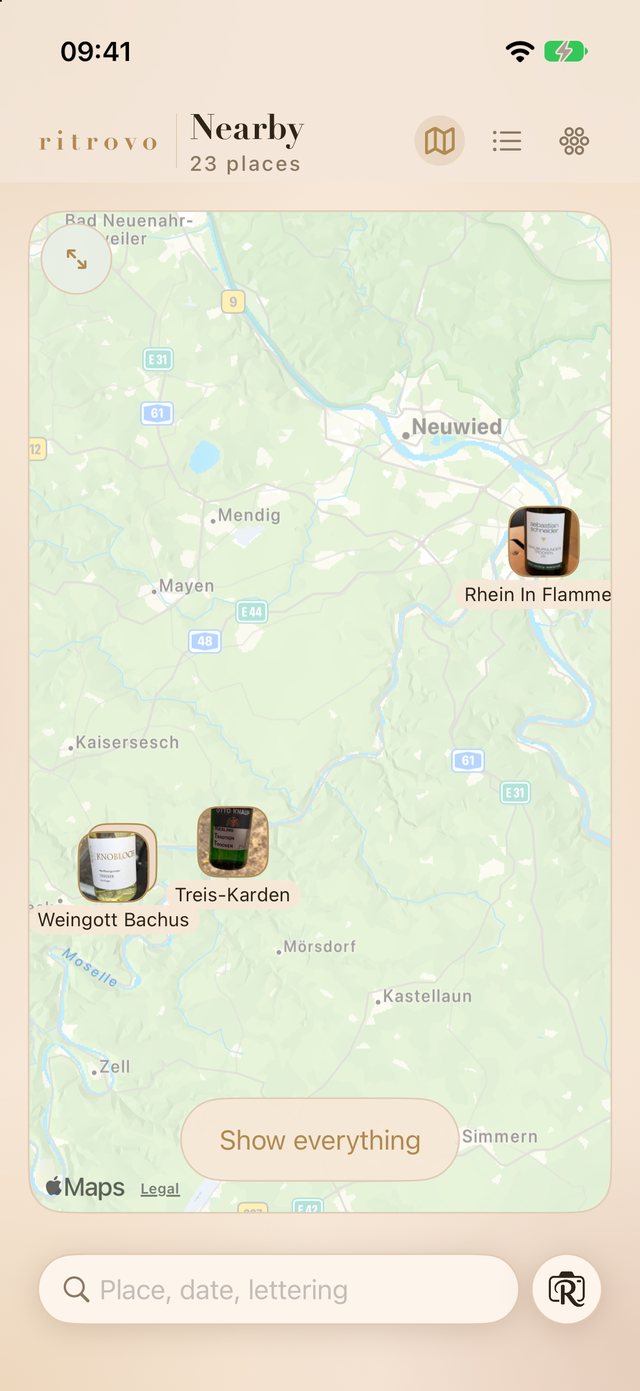
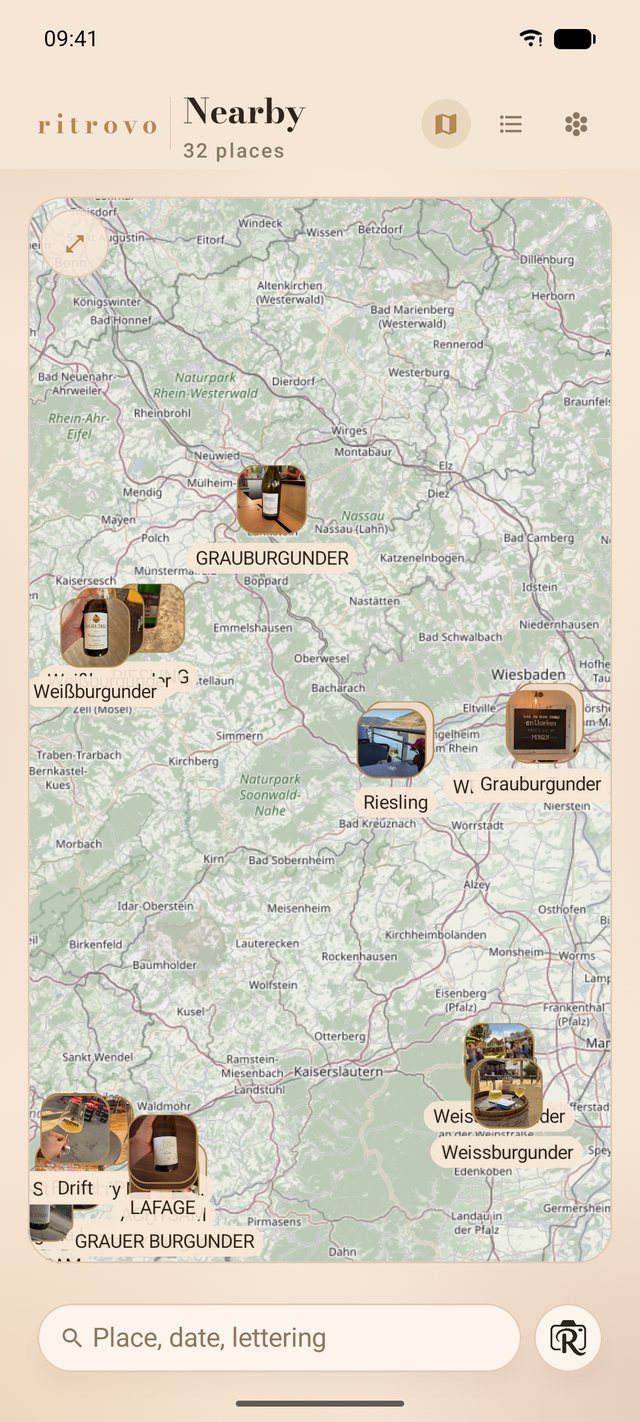
- The “Nearby” map: one picture pin per place. A tap opens the entry, or the list for that place if there are several. Show the whole map brings all places into view. Show everything clears a search. Entries without a place are not on the map.
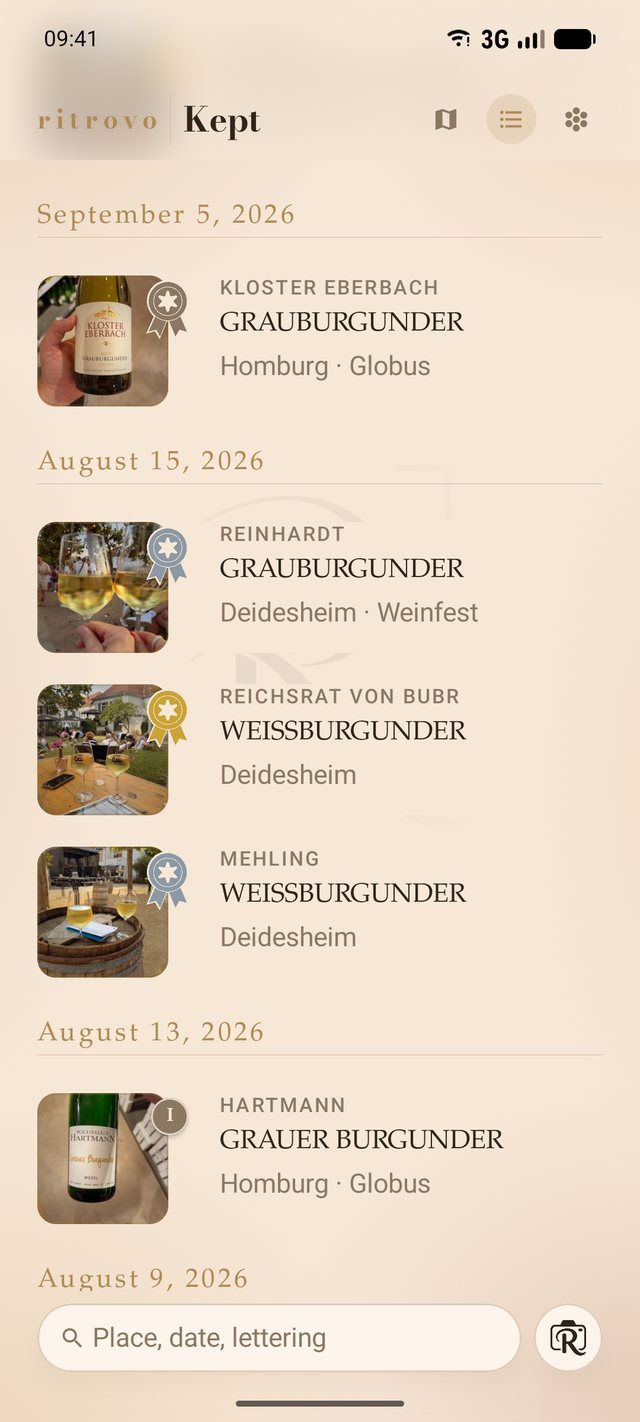
- The “Kept” list: ordered by day.
- Gallery: swipe to move the wall, tap a picture at the edge to bring it into the magnifier, tap the picture in the magnifier to open the entry. The wall drifts on its own. The Fine-tuning button at the bottom right changes how the honeycomb is laid out.
Search and filter
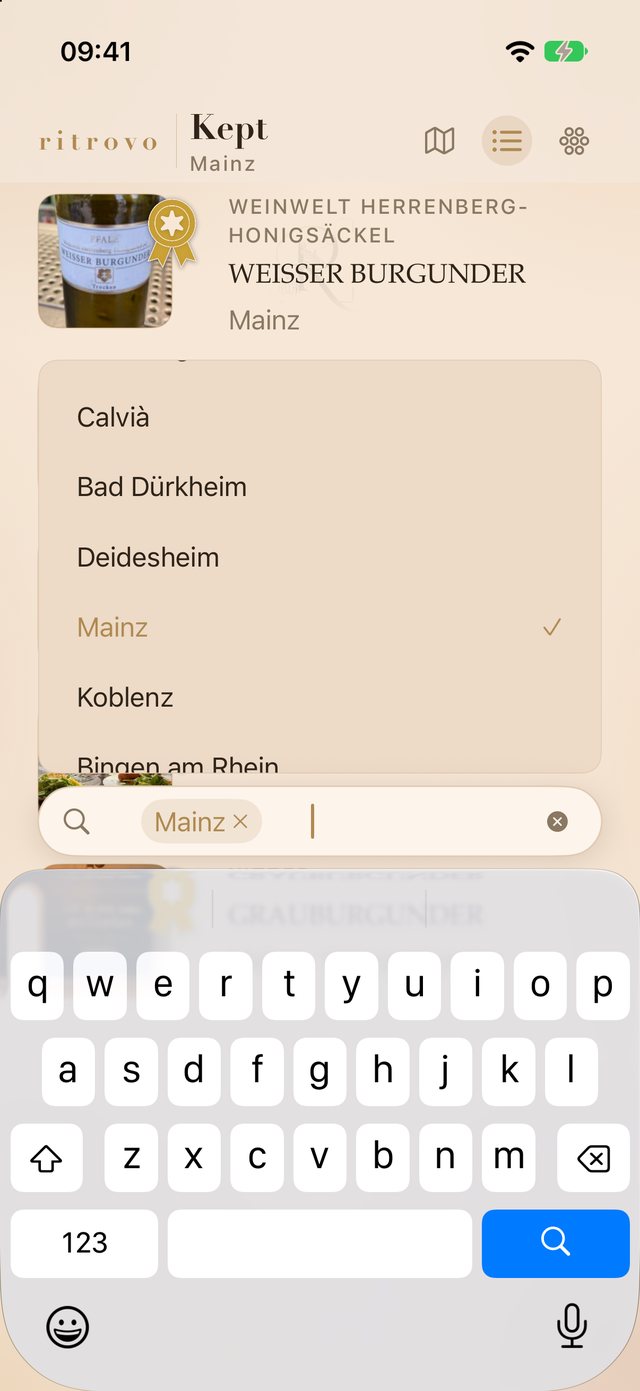
Tap the search field at the bottom. A list of values appears above it with Town, Where (your place names), Rating and With (people). Your choice becomes a token in the field; tap it to remove it.
Typed text searches the name, note, place name, town, a written-out date (“July”, “2019”), what you ticked, and the text recognised on the label. From five characters on, search forgives typos.
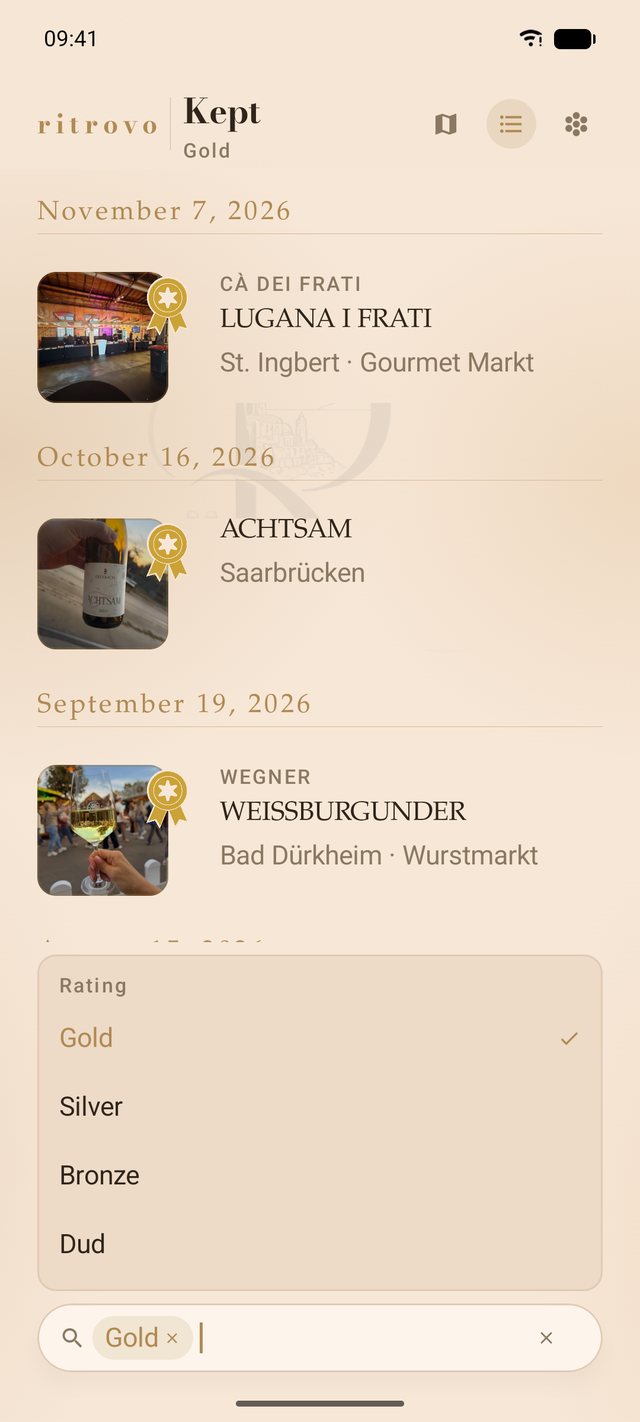
Tap the search field at the bottom. The filter is Rating. Typed text searches the name, the producer and your place names.
On Android, dates and the recognised label text are not searched yet, even though the search field shows Place, date, lettering.
Search applies to the map, the list and the gallery.
You know this one: when ritrovo recognises something
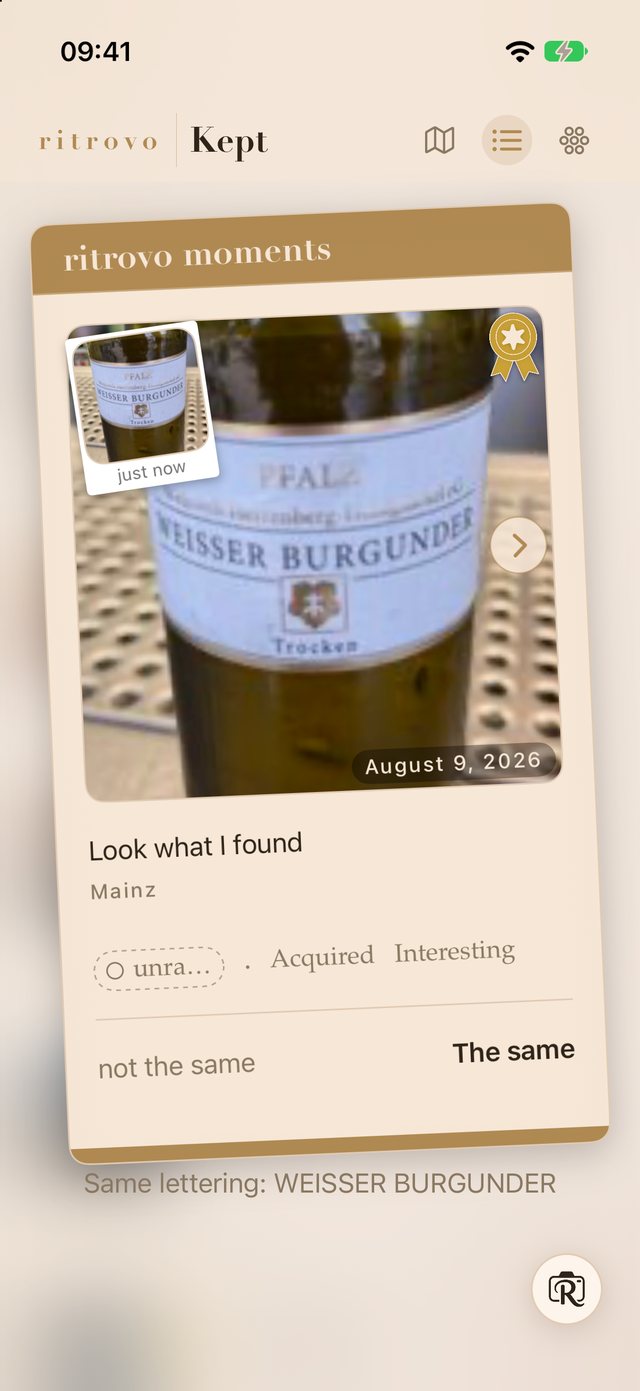
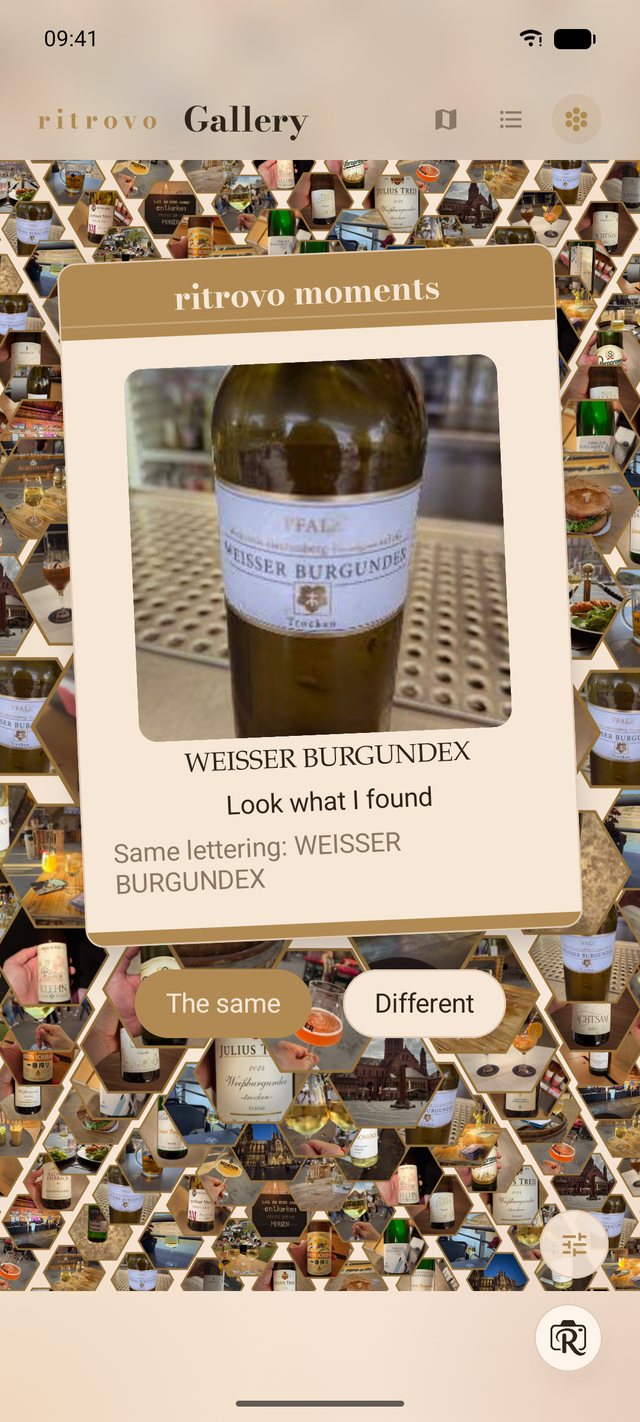
After a shot, ritrovo compares it with your collection. If the lettering matches, the ritrovo moments card appears with the photo it remembered and the reason, such as Same lettering: …. There is never a notification; if you have already left the app, you see the hint the next time you open it.
- The same links the two entries, not the sameDifferent dismisses the hint. Swiping it away works too.
- Tap the photo to open the old entry.
- If you prefer it quieter, switch off Show as a memory card. The same hint then arrives as a slim banner above the toolbar.
Possible hints: Look what I found, “Of this you had the …” (another vintage), “You've had something else from …” (same producer) and, by picture similarity, Could this be the same one?.
Link and unlink encounters
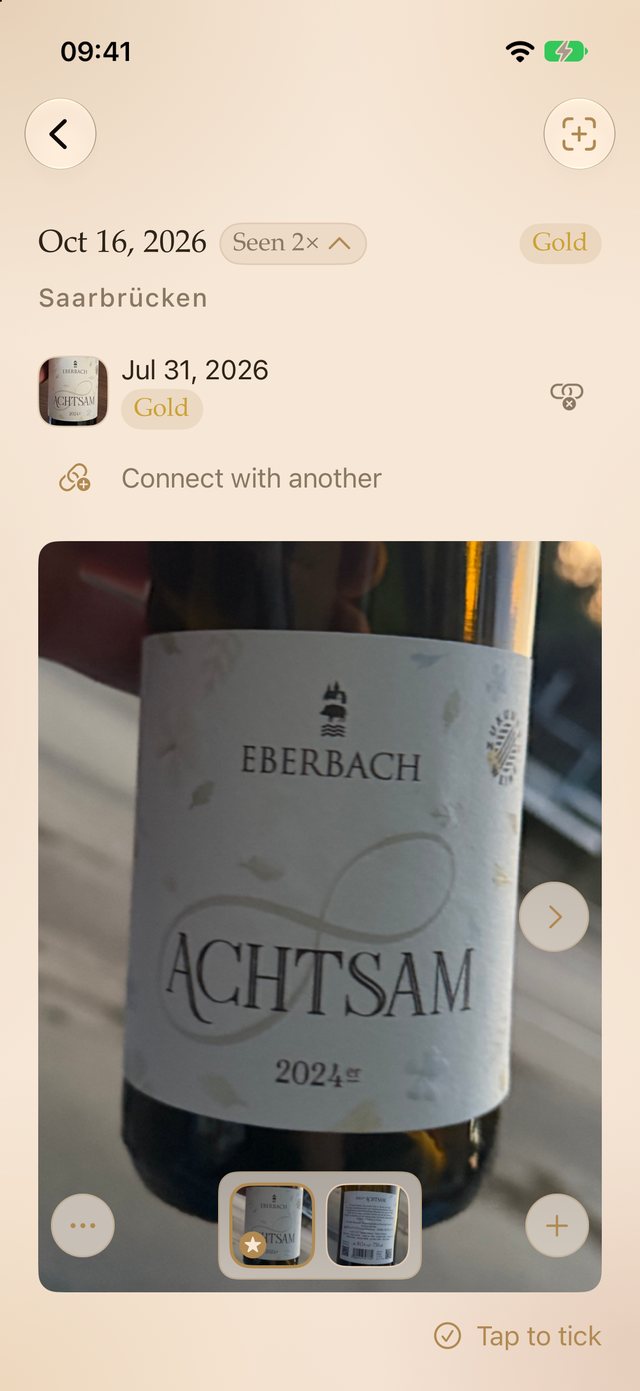
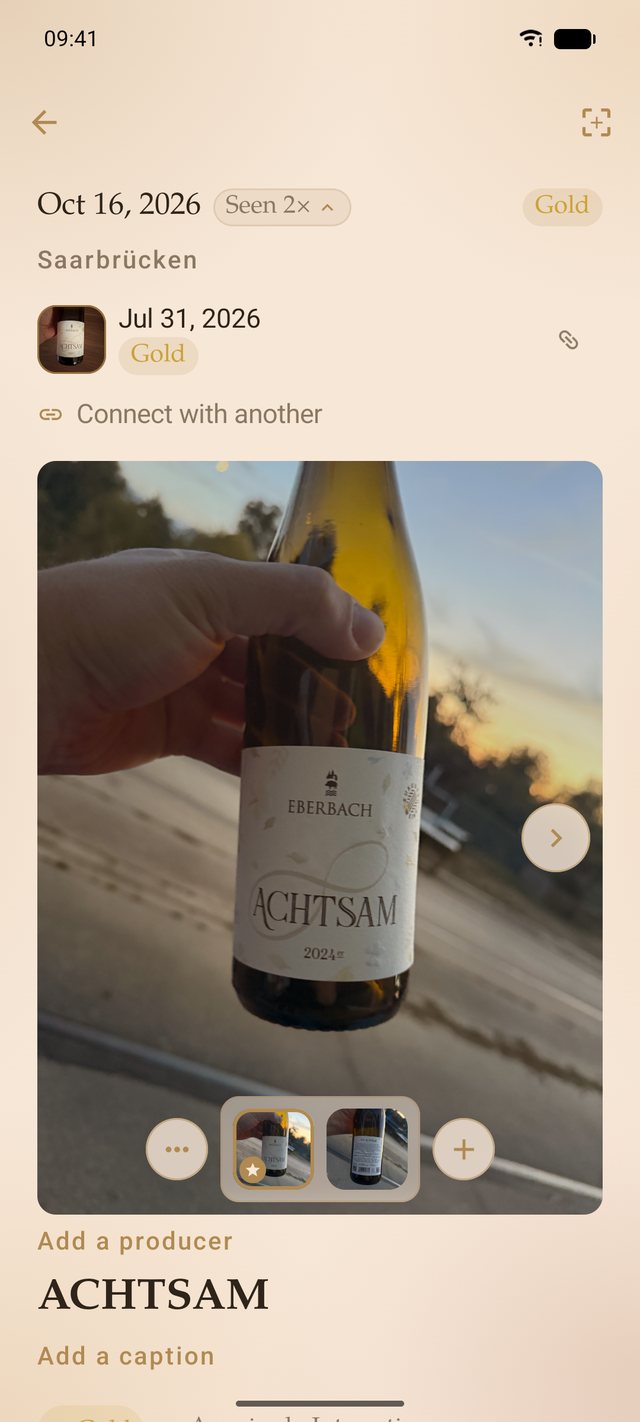
“The same” does not merge anything: both entries stay, linked by a thread. In the entry, a chip like Seen 3× shows the earlier encounters; tap it to open them. Unlink separates them again.
To link by hand: in the entry, tap the connect chip → Connect with another → choose the other entry.
Delete and undo
To delete an entry, swipe its row in the list to the left. You delete pictures in the entry with Select.
There is no confirmation and no trash. A banner says Entry deleted or Picture deleted with Undo. After sixfive seconds the deletion is final.
Deleting something in Apple Photos changes nothing in ritrovo: ritrovo keeps its own copy.
Settings and backup
All settings
Tap the “ritrovo” wordmark at the top left. About ritrovo opens.
| Switch | At first |
|---|---|
| Keep the place with the entry | off |
| Second copy in the photo library | on (camera shots only) |
| Take the date and place from the library | off |
| Back up to iCloud | off |
| Show as a memory card | on |
| Appearance | Automatic (or Light, Dark) |
| Switch | At first |
|---|---|
| Keep the place with the entry | on |
| Show as a memory card | on |
| Appearance | Automatic (or Light, Dark) |
| Back up automatically | off until you choose a folder |
Plus the backup as a file and, at the very bottom, the Your data section. Fonts lists the font licences.
Backup as a file
- Open About ritrovo and tap Create backup.
- Keep the file wherever you like: in your files, in a cloud, as an email to yourself.
The file ends in “.ritrovo” and holds your entries with photos, names, verdicts, places and links. ritrovo then reports something like “Backed up: 43 entries, 120 photos.”
Bringing it back: Restore from backup and choose the file. Restoring only adds: nothing that is there is overwritten or deleted. The message reads something like “Restored: 43 new, 0 already there.”
Back up to iCloud
Back up to iCloud is off at first. Switched on, a copy of your entries goes to your private iCloud: names, places, verdicts, notes and recognised text. The pictures do not go along. On a new iPhone, the entries are therefore there without pictures.
The switch takes effect the next time the app starts. Without an Apple account it switches itself off again. For the pictures, use the backup as a file.
Back up to a folder automatically
- Open About ritrovo, section Automatically to a folder.
- Tap Choose folder. Ideally one that syncs to a cloud (Drive or Nextcloud, say).
- Switch on Back up automatically.
When you put the app away, ritrovo backs up quietly and transfers only what is new. Three older versions are kept. Back up to the folder now backs up at once, Restore from folder brings a version back.
If Google backup is on for your device, Android also includes ritrovo there (Android limits it to 25 MB per app).
Light and dark
Under Appearance you choose Automatic (follows the device), Light or Dark. The pictures on this page show both appearances: the moon in the bar at the top switches them.
ritrovo and gaho
gaho is the sister app for the round of golf. With both on your iPhone, they share people and places. If your search text or filter in ritrovo matches a person or place from gaho, a section headed “aus gaho” (from gaho) appears at the top of the results; from there you jump to gaho and back. There is no extra menu for it.
gaho is the sister app for the round of golf. On Android the link is narrower than on iPhone: the two apps only share the list of people. There is no “aus gaho” (from gaho) section in search on Android.
Everything at a glance.
Capture
- Its own viewfinder; several photos make one entry
- Targets New entry, Last, Gallery only; Live Photos
- Up to ten photos from the library
- One photo at a time from the library
- Name from the label, by itself or by touch and hold
- Lock Screen widget, Control Center control
The entry
- Medal: gold, silver, bronze, dud; plus Acquired or Interesting
- Producer, name, caption, note, date, place
- Ticking lines on a wine list
- Who was there, without your contacts
- Photos from the same evening, crop, separate entry from pictures
Finding again
- Map, list, gallery
- Search in name, note, place, date and label text; filters Town, Where, Rating, With
- Search in name, producer and place names; filter Rating
- You know this one: a hint after the shot, a thread between encounters
- A quiet question based on picture similarity
Backup and data
- Backup as a file, with all pictures
- iCloud backup, optional, without pictures
- Second copy in Apple Photos
- Automatically to a folder of your choice
- Light and dark, English and German
Left out on purpose
- Account, subscription, ads, tracking
- Stars, points, required fields, categories
- Product database, prices, other people’s ratings
- Feed, sharing entries, notifications
- Trash and delete confirmation (there is Undo instead)
- iPad, landscape, Apple Watch, Home Screen widget
- Widgets, watch
iPhone and Android compared
| iPhone | Android | |
|---|---|---|
| First view | Map | List |
| Place switch at first | off | on |
| Viewfinder targets | New entry, Last, Gallery only | New entry |
| From the library | up to 10 photos | 1 photo |
| Live Photo, second copy, evening photos | yes | no |
| Search | with date and label text; filters Town, Where, Rating, With | name, producer, place name; filter Rating |
| Place | name, town, reassign, new place | name, choose |
| Crop, separate entry from pictures | yes | no |
| Question based on picture similarity | yes | no |
| Backup | file; iCloud without pictures | file; folder; Google backup |
| Map | Apple Maps | OpenStreetMap |
| Widgets | Lock Screen, Control Center | none |
| Undo | 6 seconds | 5 seconds |
| Requires | iOS 17 | Android 8.0 |
Answered briefly.
When is ritrovo coming, and what does it cost?
ritrovo is not released yet, neither on the App Store nor on Google Play. You’ll see the price in the store then. There are no purchases and no subscription inside the app.
Which devices does ritrovo run on?
On iPhone with iOS 17 or later, in portrait. No iPad, no Apple Watch.
On Android phones with Android 8.0 or later.
The app comes in English and German, light and dark.
What leaves my device?
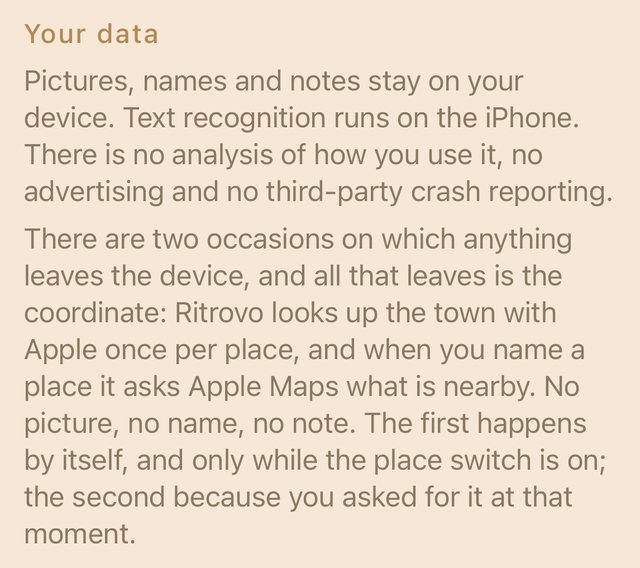
ritrovo saves photos, names and notes on your device. Text recognition runs on the device. There is no account, no advertising and no analysis of how you use the app.
- With the place switch on: the coordinate goes to Apple, once per place, for the town name.
- When you name a place: the coordinate goes to Apple Maps for nearby suggestions; a typed town name for the town search.
- The map comes from Apple Maps.
- iCloud only if you switch it on, without pictures. The second copy is in Apple Photos, so with iCloud Photos it is there too.
- With the place switch on: the coordinate goes to your device’s location service, for the town name.
- The map tiles come from OpenStreetMap.
- The folder backup goes wherever the chosen folder is; Google backup, if it is on for your device.
Why doesn’t ritrovo recognise my wine?
ritrovo only knows what you have kept yourself, so on day one it recognises nothing. It compares the lettering: roughly two out of three words of an old entry need to be on the new picture, and a vintage must match exactly. There is no wine or product database.
The name was misread
ritrovo does not correct misread text on its own. Tap the name and change it on the keyboard, or pick another line in the picture (how to). If no lettering is clear, the entry stays without a name.
Does ritrovo merge duplicate entries?
No, never on its own. Even “The same” only links the entries with a thread; both remain (more).
I deleted something by mistake
Tap Undo in the banner right away. After sixfive seconds the deletion is final. If you have a backup, Restore from backup brings the entry back without overwriting anything.
I’m getting a new phone
With the iCloud backup your entries are back, each without a picture. With the backup as a file, the photos come back too.
Make a backup as a file beforehand or use the folder backup. On the new phone it brings everything back, photos included.
Can I switch between iPhone and Android?
The backup file is the same on both and built for both directions: Create backup on one device, Restore from backup on the other. What ritrovo needs for recognising things, the new device works out again itself. For what the Android version does not have, see the comparison.
Do the names under “Who was there” go into the backup?
No. The people are neither in the backup file nor in the iCloud backup in the folder backup. After moving to a new device, you add them again.
Does ritrovo remind me of anything?
No. ritrovo sends no notifications. Hints like “You know this one” appear only inside the app.
Can I share entries with others?
No. There is no feed and no sharing of single entries. Only the whole backup file can be passed on.
Why are my shots in Apple Photos too?
That is the second copy: ritrovo also saves camera shots to your photo library, so you keep the original. To turn it off: About ritrovo → Second copy in the photo library. Deleting in Apple Photos changes nothing in ritrovo.
Question not answered?
Write to hello@thadwi.studio. We usually reply within two working days, in German or English.